Introduction
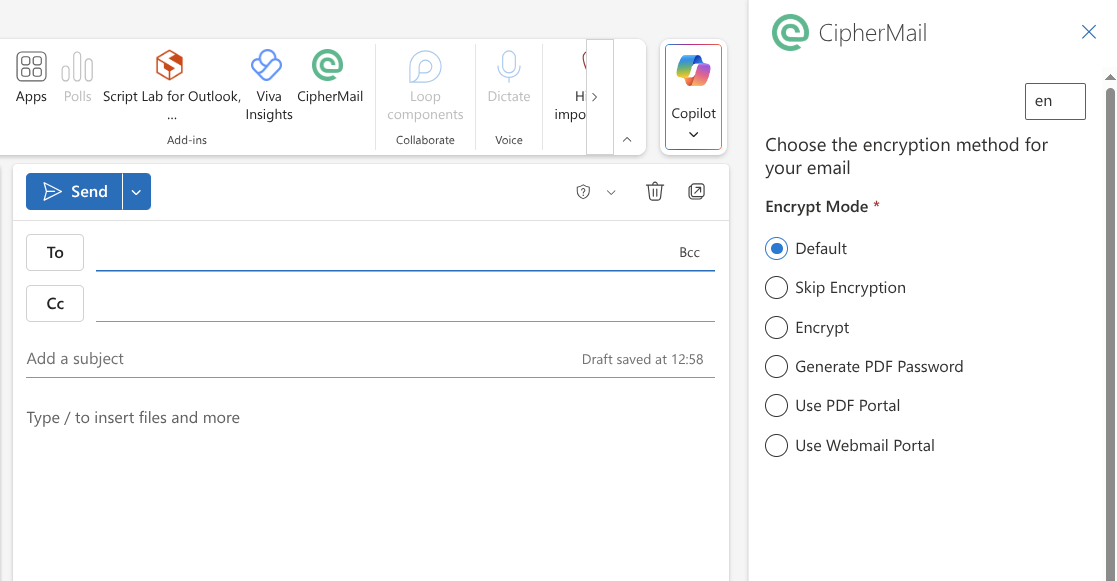
The CipherMail Outlook add-in allows you to easily secure your emails by triggering encryption directly within your mail client. Designed as a modern Office add-in, it provides a seamless experience across multiple platforms, including Outlook for Windows, Outlook for Mac, and Outlook on the web. The CipherMail Outlook add-in is a new style add-in.
Classic vs new style Outlook add-ins
Outlook add-ins come in two distinct varieties: classic and modern. Classic add-ins are built using older technology specifically for the Windows version of the Outlook desktop application. While they have been the standard for many years, they have significant limitations. They only function on Windows computers and cannot be used with Outlook on Mac, mobile devices, or through a web browser. Furthermore, Microsoft is currently transitioning away from this older format. If you switch to the New Outlook for Windows, you will find that classic add-ins are no longer supported.
Modern add-ins are the current standard for extending Outlook capabilities. These are web-based applications that offer a much more versatile experience. The main benefit of a modern add-in is its universal compatibility. Once installed, the same add-in will work seamlessly across most versions of Outlook, including Windows, Mac, the web.
Because Microsoft is focusing on these modern versions, they are the best choice for long-term reliability and cross-platform support. For further details on how these technologies work, you can refer to the official documentation provided by Microsoft at https://learn.microsoft.com/en-us/office/dev/add-ins/outlook/outlook-add-ins-overview.
With the CipherMail Outlook add-in, you can easily choose your preferred encryption method directly within the Outlook interface. When you send an email, the add-in automatically communicates your selection to the CipherMail gateway, ensuring your message is protected exactly how you intended. Your system administrator can customize the available encryption options to match your organization’s specific requirements.
Deploy
Modern Outlook add-ins are web-based applications that must be hosted on a web server accessible to your Outlook client. You can host these add-ins on your organization’s internal web server or use a public cloud provider such as Microsoft Azure.
To deploy the CipherMail Outlook add-in, follow these steps:
Download
ciphermail-outlook-addin-1.0.0.1g6c469fdf.tar.gzUnzip
ciphermail-outlook-addin-1.0.0.1g6c469fdf.tar.gzEdit configuration file to disable unused options
Transfer all extracted files and folders to the web server that will host the add-in
Update the URLs in
manifest-external.xmlto match the new addressesDeploy the manifest file
Configure triggers on the CipherMail gateway
Note: replace 1.0.0.1g6c469fdf with the current value
Download package
Download ciphermail-outlook-addin-1.0.0.1g6c469fdf.tar.gz from the CiperMail download portal https://portal.ciphermail.com/
Unzip package
Unzip ciphermail-outlook-addin-1.0.0.1g6c469fdf.tar.gz
Edit configuration file
You can customize the available options by updating the assets/settings.json file.
The default configuration file enables all available options:
{
  "headerTriggers": {
    "default": {
      "enabled": true,
      "header": "x-keep-ciphermail-encrypt-trigger",
      "value": "",
      "labelKey": "default-option"
    },
    "skipEncrypt": {
      "enabled": true,
      "header": "x-keep-ciphermail-encrypt-trigger",
      "value": "skip-encrypt",
      "labelKey": "skip-encrypt-option"
    },
    "encrypt": {
      "enabled": true,
      "header": "x-keep-ciphermail-encrypt-trigger",
      "value": "encrypt",
      "labelKey": "encrypt-option"
    },
    "pdfGeneratePassword": {
      "enabled": true,
      "header": "x-keep-ciphermail-encrypt-trigger",
      "value": "pdf-generate-password",
      "labelKey": "pdf-generate-password-option"
    },
    "pdfPortal": {
      "enabled": true,
      "header": "x-keep-ciphermail-encrypt-trigger",
      "value": "pdf-portal",
      "labelKey": "pdf-portal-option"
    },
    "webmailPortal": {
      "enabled": true,
      "header": "x-keep-ciphermail-encrypt-trigger",
      "value": "webmail-portal",
      "labelKey": "webmail-portal-option"
    }
  }
}
The following json values can be edited: enabled, header, value
- enabled
Set the json value to false if the associated option should be disabled.
- header
The name of the header to add to the sent email if this option is selected
- value
The value of the header to use if this option is selected
- Example:
If the
skip encryptionoption is selected, the following header will be added to the sent email:x-keep-ciphermail-encrypt-trigger: skip-encrypt
Transfer all extracted files
Transfer all extracted files, including the modified assets/settings.json, to the web server that will host
the add-in.
Note
If you have an Azure account, you can host the add-in as a static website in Azure Storage. See https://learn.microsoft.com/en-us/azure/storage/blobs/storage-blob-static-website
Attention
The add-in’s main HTML file includes a security setting that allows it to download necessary fonts and script files from Microsoft. Please ensure that your web server is not configured with a more restrictive security policy that might block these resources.
Update manifest file
The manifest file serves as a configuration guide for the add-in. It provides essential details such as the add-in type and the source location from which it should be downloaded. Before deployment, you must update the URLs within this manifest file to ensure they point correctly to the location where your add-in files are hosted.
The URLs from the default manifest file, have a base URL of https://ciphermailoutlookaddin.blob.core.windows.net/$web/v1
Replace https://ciphermailoutlookaddin.blob.core.windows.net/$web/v1 with the new base URL.
Hint
You can test the add-in using the default manifest without making any changes or uploading resources to your own web server. In this configuration, the Outlook add-in is downloaded directly from https://ciphermailoutlookaddin.blob.core.windows.net/$web/v1.
Please note that using the default manifest does not allow you to modify the settings file. Additionally, the default setup is intended for testing purposes only, as availability of the add-in from this specific URL is not guaranteed for production use.
Deploy manifest
To add the add-in to Outlook, the manifest should be uploaded.
Add-ins can be installed for only your own account or for the organization.
Deploy to your own account:
If you are using new Outlook, you can install the add-in for you own account with the following procedure:
Open the following URL in your browser: https://aka.ms/olksideload
On the “Add-Ins for Outlook” page click “My add-ins” and then select “Add a custom add-in” and upload the manifest file.
For detailed instructions on how to install a add-in for you own account, see https://support.microsoft.com/en-us/office/use-add-ins-in-outlook-1ee261f9-49bf-4ba6-b3e2-2ba7bcab64c8
Deploy the add-in company wide:
Open the Microsoft 365 admin center
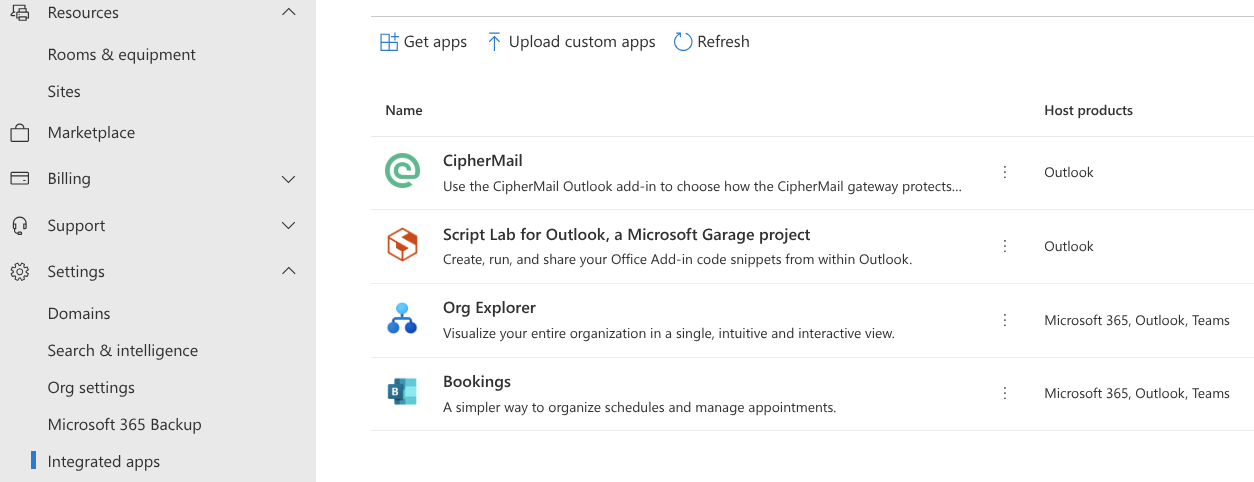
Open the “Integrated apps” page ()
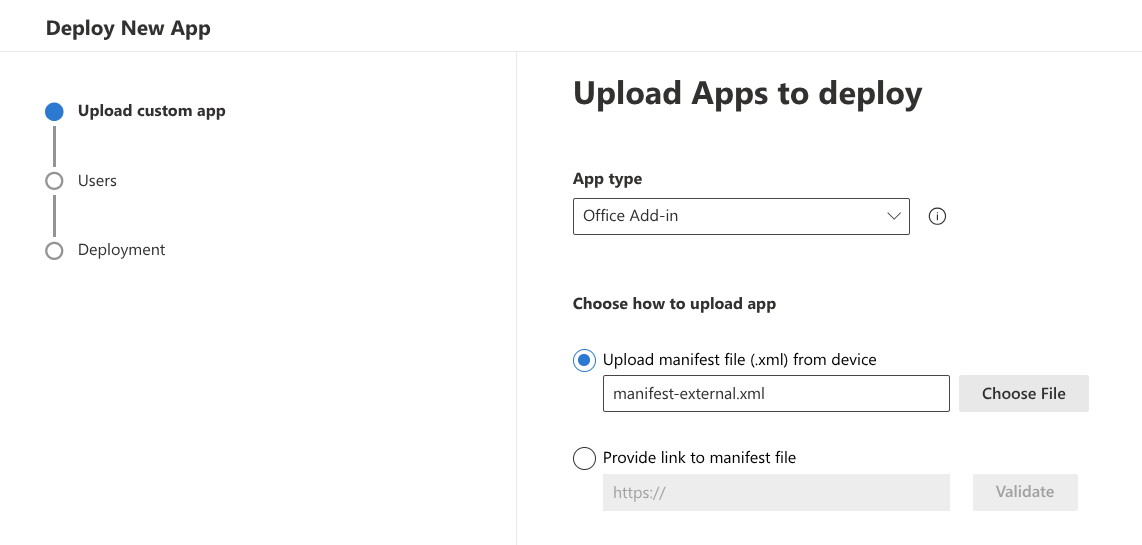
Click Upload custom apps
Select the manifest and finish the wizard
Attention
Please note that it can take up to 72 hours for the add-in to become available to all users across the organization.
Configure Gateway
Choosing an encryption option in the Outlook add-in automatically adds a special header to your email. The CipherMail gateway identifies this header and uses it to apply the correct encryption method. To ensure this works seamlessly, the gateway must be configured to recognize the specific headers used by the add-in.
To configure the triggers, you can use the following cli commands:
ciphermail-cli property domain set --domain <domain> --name trigger-encrypt-header --value "x-keep-ciphermail-encrypt-trigger: encrypt"
ciphermail-cli property domain set --domain <domain> --name trigger-encrypt-header-enabled --value true
ciphermail-cli property domain set --domain <domain> --name trigger-skip-encryption-header --value "x-keep-ciphermail-encrypt-trigger: skip-encrypt"
ciphermail-cli property domain set --domain <domain> --name trigger-skip-encryption-header-enabled --value true
ciphermail-cli property domain set --domain <domain> --name trigger-otp-encryption-header --value "x-keep-ciphermail-encrypt-trigger: pdf-portal"
ciphermail-cli property domain set --domain <domain> --name trigger-otp-encryption-header-enabled --value true
ciphermail-cli property domain set --domain <domain> --name trigger-pdf-generate-password-encryption-header --value "x-keep-ciphermail-encrypt-trigger: pdf-generate-password"
ciphermail-cli property domain set --domain <domain> --name trigger-pdf-generate-password-encryption-header-enabled --value true
ciphermail-cli property domain set --domain <domain> --name trigger-webmail-header --value "x-keep-ciphermail-encrypt-trigger: webmail-portal"
ciphermail-cli property domain set --domain <domain> --name trigger-webmail-header-enabled --value true
Replace <domain> with your internal domain. Repeat this for every internal domain.
Hint
If you haven’t enabled a specific add-in option, you can skip its trigger configuration.